

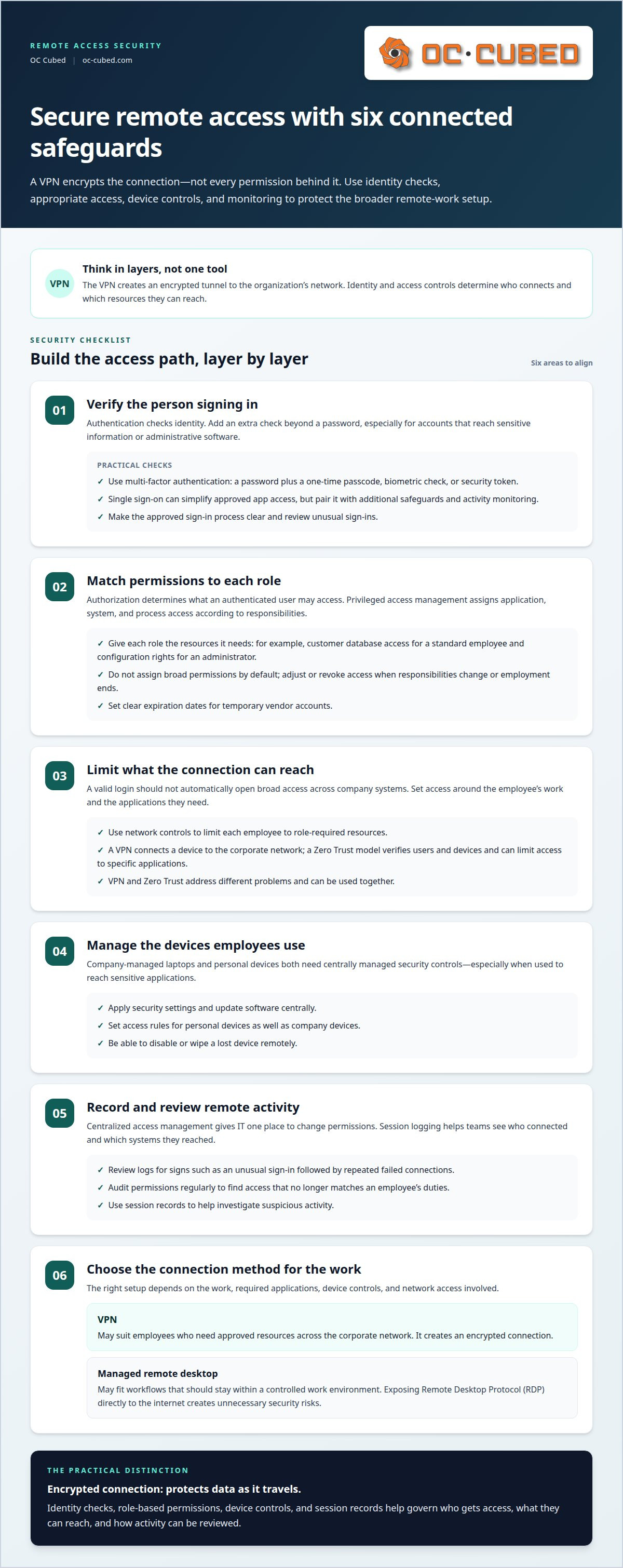
A VPN protects the connection, not every permission behind it. Securing remote access for employees means combining encrypted connections with identity checks, appropriate access permissions, and controls for the devices and systems employees use. The National Institute of Standards and Technology describes a VPN as an encrypted tunnel connecting a user’s device to an organization’s IT network.
It’s understandable to see a VPN as the main safeguard for remote work. But securing remote access for employees also depends on who signs in, what they can reach, and whether their device meets the organization’s security requirements. Single sign-on can simplify access, while multi-factor authentication, privileged access management, and network controls add safeguards.
This article explains how these layers work together and where VPNs fit. You’ll learn why broad network access and internet-exposed remote desktop connections can create avoidable risks, and how centralized monitoring and device controls help manage remote connections. The aim is a practical approach to remote access security that protects systems while letting employees get their work done.
Key Takeaways
- Pair single sign-on with additional safeguards, and use privileged access management to keep permissions aligned with each person’s responsibilities.
- Multi-factor authentication adds an identity check beyond a password, helping protect access to systems and applications.
- Limit each employee’s network access to the resources their role requires, and review permissions as responsibilities change.
- VPNs can encrypt remote connections, but deployment choices and controls for devices, sessions, and access determine how the broader setup works.
- Remote IT support and security management can help businesses coordinate these protections and respond to access issues.
Single sign-on and privileged access management
Single sign-on (SSO) lets an employee use one identity to access approved applications. For example, a finance employee might use one work account for email and accounting software. That convenience also concentrates risk: if an attacker takes over the account, multiple applications may become reachable. SSO should therefore be paired with identity checks, limited permissions, and activity monitoring.
Privileged access management (PAM) assigns access to applications, systems, or processes according to each user’s role. A standard employee may need a customer database, while an administrator may need system configuration rights. Those roles should not have broad permissions by default. Temporary vendor accounts also need clear expiration dates so access ends when the work is complete.
Is zero trust or a VPN better for securing remote workforce access? They solve different problems, and organizations can use them together. A VPN creates an encrypted connection to the corporate network. A Zero Trust model verifies users and devices, then can limit access to specific applications.
Company-managed laptops and personal devices both need centrally managed security controls. IT can apply security settings, update software, and disable or wipe a lost device remotely. Personal devices also need access rules, since employees may use them to connect to sensitive applications from outside the office. Set controls centrally rather than leaving them for users to change.
Centralized access management gives IT one place to change permissions when someone changes roles or leaves. Session logging records remote-access activity, helping teams review who connected and which systems they reached. For example, an unusual sign-in followed by repeated failed connections gives support staff details to investigate. Regular audits can reveal access that no longer matches an employee’s duties.
A provider chooses between a VPN and managed remote desktop based on the work, required applications, device controls, and network access involved. A VPN may suit employees who need approved resources across the corporate network. A managed desktop may fit workflows that should stay within a controlled work environment. Exposing Remote Desktop Protocol (RDP) directly to the internet creates unnecessary security risks.
What U.S. cybersecurity laws and compliance rules apply to remote employee access? Requirements depend on the organization’s industry, the data it handles, and its contractual commitments. A security program should map applicable obligations to access permissions, device safeguards, and session records.
What are the risks of allowing remote access to company systems? A compromised account or unmanaged device can expose sensitive applications and data. Broad permissions can increase the potential impact, while missing session logs can make suspicious activity harder to investigate.
What Is Secure Remote Access?
Secure remote access combines identity checks, permissions, and protected connections for employees using company systems away from the office. Each layer addresses a different risk, from stolen credentials to data exposed in transit.
Multi-Factor Authentication
Multi-factor authentication (MFA) requires an additional authentication method before access to systems or applications is granted. A password plus a one-time passcode, biometric check, or security token makes a stolen password alone less useful to an unauthorized person. Require the second factor at remote sign-in, especially for accounts that can reach sensitive information or administrative software.
How can companies prevent phishing and credential theft for remote workers? MFA adds a barrier if attackers capture a password, while employee training helps workers recognize suspicious sign-in requests. Organizations can also review unusual sign-ins and make the approved login process clear, so employees know where to enter their credentials.
The choice of authentication factor affects both protection and usability. A security token provides a separate physical check, while a biometric method uses a person’s identifying trait. A one-time passcode adds another authentication step. The right combination depends on the access being protected and employees’ workflows.
Remote User Authentication and Authorization
Authentication verifies who a remote user is; authorization determines which resources that user may access. For example, an employee can authenticate with a work account and MFA, then receive permission to use only the applications needed for their role. This distinction helps prevent a valid login from automatically granting broad access across company systems.
Access decisions should reflect job responsibilities. A payroll employee may need payroll software, while a project coordinator may need collaboration tools. Individual accounts make it easier to assign permissions and trace activity to a user. When responsibilities change or employment ends, adjust or revoke access so old permissions do not linger.
Phishing prevention also depends on clear authentication processes. Employees should know which login prompts and software are approved, and support teams should handle unexpected requests for credentials carefully. Remote IT support can help resolve sign-in disruptions without encouraging staff to bypass authentication controls.
Encrypted Sessions
An encrypted session protects data as it travels between a remote device and a company system. A VPN can create an encrypted tunnel between the user’s device and the organization’s IT network. Some proprietary remote access solutions use AES-256 encryption to protect remote sessions. Encryption helps protect information in transit, but it does not decide who is authorized to view it.
That distinction matters. An encrypted session can still expose information if an account has excessive permissions or a device is compromised. Authentication, authorization, and encryption are complementary controls. IT teams should consider the user, device, application, and data sensitivity when setting access policies.
For account setup and access issues, remote IT support can help coordinate the technical response and keep approved access processes usable.
Network access control
Organizations should map users, devices, and required applications, then apply access rules and layered safeguards. For example, a role-based policy can restrict a remote employee to approved work systems instead of the broader network.
Layered Security Controls
Layered security controls can include firewalls, intrusion detection and prevention, antimalware, web filtering, and vulnerability management. Each addresses different threats, so one missed control does not leave every route exposed. Network access control manages and monitors devices connecting within the corporate perimeter. Remote access policies should also cover connections outside that perimeter.
Centralized management helps organizations apply consistent practices across office networks, home connections, and personal devices. For example, a cloud-based access control solution can give IT one place to adjust rules as business needs change. Network monitoring can help identify unusual connection patterns, while multi-factor authentication adds an identity check alongside network restrictions.
Role-Based Access
Role-based access control assigns permissions according to an employee’s job responsibilities. A finance employee may need financial applications, while a project coordinator may need collaboration tools. Limiting each account to the resources it needs reduces unnecessary exposure if credentials are compromised. It also makes access decisions easier to explain and manage across teams.
Organizations should use individual accounts rather than shared logins. When someone changes roles, review and update their permissions; when an employee leaves, revoke access. For example, removing a former employee’s account prevents it from remaining an unused route into company systems. A Zero Trust approach can deny access by default and grant access only to approved applications.
Password Controls
Password controls set requirements for length, complexity, history, expiration, and lockout. Longer, higher-entropy passwords are stronger, and passwords should be memorable for users but difficult for others to guess. These practices reduce the chance that a guessed or reused password opens a path to company resources.
Organizations should align password settings with industry best practices and apply them consistently to remote sign-ins. Individual accounts make it easier to connect activity with the right user. For example, a lockout policy can restrict repeated failed attempts, while multi-factor authentication adds a check beyond the password. Password controls should support access rules, not replace them.
How a provider implements secure remote access
A provider implements secure remote access by reviewing user roles, devices, applications, and connection needs before setting controls. This assessment helps distinguish employees who need specific cloud applications from those requiring broader network resources. The provider can then configure centralized access rules, role-based permissions, and appropriate network safeguards for corporate and personal devices.
Next, the provider can apply firewall and monitoring controls, review access logs, and adjust permissions when roles change. For example, a recurring connection failure may prompt an investigation, while an unusual sign-in may need review. Regular audits help identify permissions that no longer fit job duties. This managed approach gives organizations a clearer view of access across different networks and devices.
VPN encrypted tunnels and deployment options
A VPN creates an encrypted connection between a remote device and an organization’s network. According to the National Institute of Standards and Technology, it uses an encrypted tunnel to connect a user’s device to the organization’s IT network. The tunnel helps protect data in transit across the internet. It does not determine which employee may open each application or file, so access control remains essential.
Organizations can provide VPN access through endpoint client software or a clientless web browser. Client software runs on an employee’s computer and connects it to the VPN service. A clientless option uses a browser connection, which can establish an SSL/TLS-encrypted connection to a server or application through the VPN provider. The choice depends on the systems employees need and how they connect.
For example, employees who need approved network resources may use endpoint software. A team member who needs only a particular web application may be served by a browser-based connection. In either case, cybersecurity planning should account for the device, destination, and employee’s permissions. A VPN connection should not automatically give every user access to the full corporate network.
Encryption also applies to data at rest, meaning information stored on a computer, server, or other device. Data in transit is moving between systems, such as when an employee accesses a company application remotely. Protecting both states addresses different exposure points: a VPN can encrypt a remote connection, while storage encryption protects files kept on a device or system. These controls support privacy but do not replace user permissions or device safeguards.
Deployment planning should identify the resources remote employees need, then match the connection method to those tasks. IT can determine whether access should reach the broader network or only specific applications, and configure the VPN accordingly. For sensitive data, organizations should use robust encryption protocols for internet transfers and limit access to authorized users. Session monitoring and regular reviews help teams spot unusual connections and remove access that is no longer needed.
A VPN is one part of secure remote access, not a complete cybersecurity strategy. An encrypted tunnel, for instance, can protect traffic while a compromised account remains a risk. Combining encryption with authentication, appropriate permissions, and monitored connections gives organizations more control without treating every connection as equally trusted.
Business-grade remote access security features
For securing remote access for employees, business-grade controls should connect identity, device health, permissions, and monitoring. Remote work can involve company laptops, personal devices, and networks outside the office. A well-designed approach supports productivity while limiting which systems each connection can reach. The goal is dependable access that fits work needs without treating every device or sign-in as equally safe.
The National Institute of Standards and Technology describes a Zero Trust approach that verifies every user and device attempting to connect, regardless of location. A successful sign-in does not automatically grant broad access. Policies can consider the user, device, and requested application, then allow only the resources needed for that task. This keeps access decisions tied to the specific work being done.
Application-level access can reduce exposure compared with broad network access. For example, Zero Trust Network Access can give an authenticated user access to a specific application through an encrypted tunnel. An employee who needs a scheduling tool would not automatically need file servers or administrative systems. This separation makes it easier to align access with job responsibilities.
Remote Desktop Protocol (RDP) should not be exposed directly to the internet because it creates unnecessary security risks. A controlled gateway or application-level connection can reduce direct exposure while supporting approved workflows. Remote browser isolation offers another option: requested web content runs on an isolated server rather than directly on the employee’s endpoint. The right control depends on the application and its sensitivity.
Centralized permissions, authentication controls, and session logging give IT teams clearer visibility into remote activity. For example, when an employee changes roles, permissions can be adjusted through a managed process. Session records help investigate unusual activity, while promptly removing access can limit exposure when a device is lost or an account needs restricting. Office devices also need current software and security updates.
Endpoint safeguards matter beyond the connection itself. Businesses can keep operating systems and remote-access software current, enable device encryption, and configure automatic screen locking. If a managed device goes missing, IT can revoke its access. Together, these controls make securing remote access for employees an ongoing part of business operations, not a one-time network setup.
How much does professional VPN, zero-trust, and endpoint security management cost for businesses? Pricing depends on the scope of the work and is provided after a quote request. Factors include the number of users and devices, integrations, monitoring scope, and support needs.
Best practices providers use include verifying users and devices, limiting permissions, keeping systems patched, logging sessions, and removing access promptly when needed. Providers should also consider how controls fit employees’ workflows. If an approved connection is difficult to use, employees may seek workarounds that reduce visibility and control.
OC Cubed - Your trusted MSP: Remote IT Support
OC Cubed - Your trusted MSP helps businesses manage remote access through Remote IT Support and related security services. Turn to the team when access policies, employee devices, or account issues need coordinated oversight.
Security Threat Detection and Remediation helps address threats affecting business systems, while Endpoint Protection / Antivirus supports protection across employee devices. Microsoft 365 Tenant Maintenance can also help keep the organization’s Microsoft 365 environment maintained as access needs change.
These services support a broader approach to remote access by maintaining systems, keeping endpoint protections in place, and managing security concerns. The right support can connect access decisions with the systems employees rely on every day.
Contact OC Cubed - Your trusted MSP to discuss remote IT support for your business.
Make secure access part of how your business grows
Remote access should support the way your team works as responsibilities, devices, and business systems change. Treat it as an ongoing part of IT operations, with clear ownership for access decisions and security issues. That keeps securing remote access for employees connected to everyday business needs, not just a one-time technology setup.
OC Cubed - Your trusted MSP offers Remote IT Support, Microsoft 365 Tenant Maintenance, and Security Threat Detection and Remediation. These services can help businesses maintain their systems and manage security concerns as remote work evolves.
Choose a practical next step: discuss how remote access fits your employees’ roles, devices, and systems, then build a plan around those needs.
With clear access controls and the right support, your team can work remotely with greater confidence and stay focused on what comes next.
Frequently Asked Questions
What is the safest way to access an office PC from home?
Use an organization-approved remote connection that verifies your identity and limits access to the intended work computer. Avoid exposing Remote Desktop Protocol directly to the internet. For example, an employer may provide a VPN or controlled remote-access gateway, then restrict the session to an assigned PC. The right approach depends on the applications you need and how the organization manages devices and permissions.
What is the safest way to remote into a work computer?
Use the connection method configured by your organization rather than installing unapproved remote-access software. An approved setup should authenticate the user, protect the connection, and restrict access to the intended computer or application. For example, if you need one work application, access limited to that application may be more appropriate than a connection to the wider network. Contact your IT support team if the approved method fails.
How should a provider configure VPNs for remote employees?
A provider should match VPN access to employees’ work requirements rather than granting broad network access by default. For example, staff who need a specific application can receive access limited to that destination, while other roles may require different resources. The provider should configure encrypted connections, apply identity checks, and review permissions when job responsibilities change. Session records can help investigate connection problems and unusual activity.
How do MFA and passkeys reduce remote access risks?
MFA requires an authentication method beyond a password, such as a one-time passcode, biometric check, or security token. This makes a stolen password alone less likely to provide access. Passkeys offer another way to authenticate without relying on a password typed into a sign-in page. A provider should integrate available sign-in methods with the organization’s identity system and consider how employees recover access if a device is unavailable.
How can a provider secure employee devices used for remote access?
A provider can apply centrally managed security settings to company-owned and personal devices that connect to work systems. For example, device policies can require updated software and enable automatic screen locking. Remote device management can also enforce security policies, install updates, or disable or wipe a device reported lost or stolen. Access rules should account for personal devices too, since they may connect from outside the corporate network.
What endpoint security tools should a provider deploy for remote employees?
A provider should select endpoint protections that fit the organization’s devices, applications, and security risks. Antivirus or antimalware can help protect endpoints, while device management supports consistent settings and software updates. Firewalls, web filtering, and vulnerability management can add further layers. These tools work best as part of a managed plan that tracks alerts and gives support staff a process for investigating suspicious activity.
How should a provider set up least-privilege access for remote employees?
A provider should map each employee’s role to the systems and applications needed for the job, then grant only those permissions. For example, a staff member who uses a scheduling application should not automatically receive administrative access to other systems. Individual accounts make assignments and reviews clearer. The provider should update access when roles change and revoke it when someone leaves, reducing outdated permissions.

Article by
Peter Irizarry
Peter Irizarry founded OC Cubed, LLC in 2023 to help small to mid-sized businesses stop worrying about downtime and cybersecurity threats. A frequent speaker on SMB digital transformation, Peter is passionate about translating complex IT roadmaps into plain-English business growth strategies. He resides in North Texas with his family.


