

Getting the most out of your M365 subscription starts with making its tools part of everyday work. Set clear ways to collaborate in Teams and Groups, turn flagged Outlook emails into actionable tasks, and show employees where each app fits. Keep the guidance practical and give people ways to keep learning as their needs change.
It’s not enough to make tools available; employees need to know how to use them confidently and consistently. This article explains how to support adoption, organize collaboration, manage follow-ups in Outlook, and build ongoing learning into the way your team works. You’ll find practical steps for helping people use M365 with greater clarity and less friction.
Key Takeaways
- Match Microsoft 365 apps to everyday work so employees can see where each tool fits.
- Use Teams and Groups to keep collaboration organized, and shared files to support real-time co-authoring.
- Turn flagged Outlook emails into actionable tasks with Microsoft To Do.
- Build adoption by communicating changes clearly and involving early adopters and subject matter experts.
- Support ongoing learning by preparing capable team members to guide colleagues as tools and needs evolve.
1. Microsoft 365 apps and services
Getting the most out of your M365 subscription starts with mapping Microsoft 365 apps to actual work. Match Word, Excel, PowerPoint, Teams, OneDrive, and SharePoint to tasks employees already perform. For example, teams can store shared documents in SharePoint and edit them together. This simple inventory helps reveal useful tools that employees may overlook. It also gives administrators a clearer view of overlapping digital services.
Microsoft 365 and Office 2024 use different payment and access models. Office 2024 is a one-time purchase of a specific Office version, while Microsoft 365 uses a recurring subscription. Consider whether your organization needs subscription-based access to Microsoft 365 apps and services or a specific Office release. The right choice depends on how employees work and which services they need.
Monthly billing spreads payments across months, while annual billing charges for a year. Compare each plan’s included features and intended users before choosing.
To find overlapping SaaS subscriptions, list the tools employees use for documents, storage, meetings, and task management. Then compare those tasks with Microsoft 365 apps, including OneDrive, Teams, Planner, and SharePoint. For example, a separate file-sharing service may overlap with OneDrive or SharePoint. Confirm which teams rely on each service, along with its integrations and access requirements, before changing subscriptions. Overlap alone does not show that a tool can be removed.
Microsoft Stream meeting recordings and transcripts help employees revisit decisions and details. Make each meeting’s purpose clear, then organize its recordings and transcripts so relevant coworkers can find them. For example, a project team can search a transcript for a decision instead of replaying the full recording. Follow your organization’s access and retention practices when handling meeting content.
Microsoft 365 security tools include Data Loss Prevention, sensitivity labels, and multi-factor authentication. Data Loss Prevention policies in Outlook can alert senders when an email may expose sensitive data to an unauthorized identity. Use sensitivity labels to help classify information, and apply multi-factor authentication to add an account sign-in safeguard. Microsoft 365 tenant settings should align with the organization’s data-handling practices.
AI tools may be available within Microsoft 365 plans, but the features employees can use depend on their organization’s setup and plan. Start by identifying the AI-enabled tools present in your Microsoft 365 environment. Then choose a specific work task, such as drafting or summarizing, and establish clear guidance for handling business information. Review permissions and security controls before expanding access. This keeps AI adoption connected to real workflows and responsible data use.
2. Using Teams and Groups for communication and collaboration
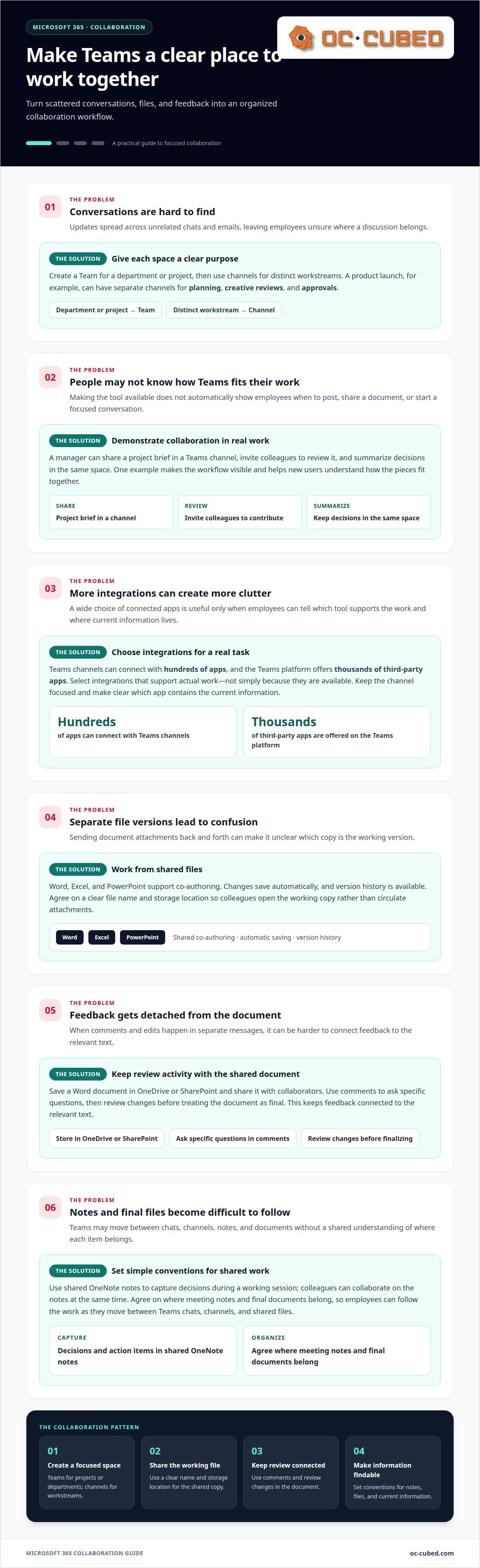
Teams and Groups work best when employees know where each conversation belongs. Create a Team for a department or project, then use channels for distinct workstreams. For example, a product launch might have separate channels for planning, creative reviews, and approvals. Give each space a clear purpose so employees can find updates without searching unrelated chats and emails.
Leaders can encourage adoption by demonstrating collaboration in real work. A manager might share a project brief in a Teams channel, invite colleagues to review it, and summarize decisions in the same space. This shows employees how Teams supports a complete workflow and helps new users understand when to post a message, share a document, or start a focused conversation.
Teams channels can connect with hundreds of apps, and the Teams platform offers thousands of third-party apps. Choose integrations that support a real task rather than adding tools just because they are available. For example, a project team could use a connected app to bring relevant work into its channel discussions. Keep the channel focused, and make sure employees know which app contains the current information.
Real-time collaboration can reduce the confusion of sending separate document versions. Microsoft 365 supports co-authoring in Word, Excel, and PowerPoint, with changes saved automatically and version history available. Colleagues can work on a shared presentation while a project lead edits the related spreadsheet. Agree on a clear file name and storage location, so people can open the working copy instead of circulating attachments.
To co-author a Word document with change tracking, save it in OneDrive or SharePoint and share it with collaborators. For example, a team drafting a proposal can work from one shared file. Use comments to ask specific questions, and review changes before treating the document as final. This keeps feedback connected to the relevant text.
Shared OneNote notes support simultaneous collaboration and can help teams capture decisions during a working session. A project group might record action items in OneNote while a colleague updates a related Word document. Agree on where meeting notes and final documents belong. Clear conventions make collaboration easier to follow as employees move between Teams chats, channels, and shared files.
For teams exchanging sensitive attachments, connect collaboration practices with email security support. Employees should know which channel or shared file is appropriate for each task, and which information requires careful handling. Clear choices help Teams, Groups, and email work together without creating extra confusion.
3. Turning flagged Outlook emails into tasks
A flagged Outlook email can become an actionable task through Microsoft To Do integration. This moves follow-ups out of the inbox and into a place employees can manage alongside other work. For example, flag a customer request that needs a project update, then use the resulting task to keep the action visible. The original email remains useful context for the follow-up.
Set a consistent approach across the team: flag emails that require future action, not messages you simply want to remember. When flagged emails appear as tasks in Microsoft To Do, add enough context to make the next step clear. “Send revised project schedule” is more useful than a vague reminder to “reply.”
For a project handoff, an employee might flag an Outlook email requesting a document review. The task can prompt them to review the request and respond, while the original email provides the details. If the document is stored in OneDrive, they can keep the relevant file and message in view while completing the work. Clear task wording helps colleagues understand the action without rereading a long thread.
Not every Outlook conversation needs another notification. Use Outlook’s Ignore Conversation feature when a thread no longer requires attention. It deletes the conversation and stops new notifications about it. For example, ignoring a completed project thread that continues to receive nonessential replies can reduce distractions. Use the feature selectively, since new messages in an ignored conversation will no longer surface as notifications.
Outlook’s Data Loss Prevention policies can alert email senders when they may be about to share sensitive data with an unauthorized identity. For example, an alert can prompt a sender to reconsider a message before sending sensitive information to an unintended recipient. Alerts support safer decisions, but employees still need to follow the organization’s data-handling procedures.
Use a brief routine to keep Outlook tasks useful. At the start of the workday, scan Microsoft To Do for flagged emails that need action. Clarify each task’s next step, complete it, or leave it visible for later. Then review conversations that still generate notifications and ignore only those that no longer require attention. This separates actionable requests from inbox noise without turning every message into a task.
Consistent task habits also make follow-ups easier to discuss during project check-ins. A team can review task wording, identify requests without a clear next step, and decide who owns the response. Pair this practice with Outlook security features, including Data Loss Prevention alerts, to support productivity and careful information handling.
4. Communicating changes and encouraging user adoption
Announce each Microsoft 365 change in terms of the work it affects. Explain what changed, who needs to act, and where to find the updated process. For example, if a team moves project updates into a Microsoft Teams channel, show which channel to use and what belongs there. Clear, task-based messages help employees connect a platform change to their daily work.
Identify early adopters and subject matter experts who can demonstrate new tools. A colleague who uses Teams confidently can show others how to post an update, share a file, or organize a conversation. Ask these employees to answer practical questions and share examples from real work. Peer guidance makes new workflows easier to understand than a feature announcement alone.
Plan communications for the people affected. A Microsoft Office change for finance may need different instructions from a Teams update for project groups. Send relevant guidance to each audience and specify the action employees need to take. For example, tell document owners where to find a new template and which file versions remain in use.
Use Microsoft Teams to keep change information easy to find. Create a channel or pinned post for a rollout, then use it for announcements, short demonstrations, and follow-up questions. Staff who miss the initial message can return to the same place for instructions. Make the latest guidance easy to identify, especially when older versions of a process remain in circulation.
Make adoption a two-way process. After introducing a change, invite employees to explain where the new workflow slows them down. For example, a team might have trouble finding a shared document or knowing which channel to use. Address those specific issues with revised instructions, a short Teams demonstration, or a clearer file location.
Track practical signals instead of relying on general impressions. Managers can review whether project updates appear in the intended Teams channel, whether employees use the shared document process, and which questions keep recurring. These observations show where additional guidance may help. Treat getting everyone on the same page 100% of the time as an adoption goal, not an assumption.
Keep each update focused. State the reason for the change, the employee action, and where to get help. When a Microsoft 365 workflow changes, provide a concise example showing the previous step and the new one. This approach supports a more seamless transition while helping employees understand which tools and versions apply to their work.
5. Employee training and ongoing learning
Choose a technically capable, highly engaged employee to become an internal Microsoft 365 subject matter expert. Train this person to demonstrate practical tasks and guide colleagues through common questions. For example, a department’s go-to contact can show staff how its shared files and meeting notes fit their daily workflow. Give the expert a clear role in training, not responsibility for solving every technical problem.
Build training around the work employees need to complete. A new project coordinator might practice organizing meeting notes in OneNote, while a team lead learns to locate shared project documents. Use examples drawn from real work, with sample information where appropriate. A focused demonstration of one task is easier to apply than a tour of every Microsoft 365 feature.
Offer training in more than one format. A live demonstration shows how a workflow works from beginning to end, while a short written guide helps employees revisit the steps. For example, publish a concise guide explaining where the team records decisions and how colleagues find the latest notes. Keep the instructions in a shared location employees already use.
Tailor OneNote guidance to your organization’s practices. Show employees how to structure a shared notebook, name sections, and record decisions consistently. A project team could separate planning notes from decisions and follow-up items, making the notebook easier to use in later discussions. Explain who maintains each area and how colleagues should add information so the notebook supports a repeatable workflow.
Leave time for practice and questions. After demonstrating a task, ask employees to try it using a realistic example, such as finding a shared project note or recording a decision. Invite the internal subject matter expert to collect recurring questions and improve the guide. If people repeatedly misunderstand a step, revise the instructions instead of assuming the tool is self-explanatory.
Review training when the organization changes a process or introduces a new way of working. A team that changes how it records project decisions, for instance, needs updated guidance and an example of the new workflow. Keep instructions current, assign an owner to revise them, and tell affected employees where to find the latest version. This keeps learning connected to daily work.
Check whether training helps employees complete the intended task. Managers can ask whether staff can find shared project notes or follow the agreed OneNote structure. Use their answers to identify gaps, then offer a focused demonstration or clearer instructions. This creates a practical learning cycle: explain the workflow, let employees try it, and improve the guidance where confusion remains.
OC Cubed - Your trusted MSP
OC Cubed - Your trusted MSP helps businesses keep Microsoft 365 tools supported, secure, and aligned with everyday work. When employees struggle with access, settings, or dependable workflows, Remote IT Support can help address technical barriers. Microsoft 365 Tenant Maintenance supports the ongoing management of the organization’s environment.
Security also matters as staff share files, manage email, and collaborate across Microsoft 365. Security Threat Detection and Remediation and Endpoint Protection / Antivirus can support a broader approach to protecting business systems. These services are a practical next step when internal teams need help maintaining their environment alongside employee adoption.
For support with Microsoft 365 and your wider IT environment, contact OC Cubed - Your trusted MSP.
Make M365 adoption part of everyday work
Strong adoption grows when employees can apply M365 tools to real tasks and get help as needs change. Treat getting the most out of your M365 subscription as an ongoing effort, not a one-time rollout. Regularly review where employees encounter friction, then adjust guidance and support around those needs.
When your team needs technical help, OC Cubed - Your trusted MSP offers Remote IT Support and Microsoft 365 Tenant Maintenance. Its Security Threat Detection and Remediation can also support a more secure environment. These services can help businesses maintain the systems employees rely on as they work and collaborate.
Choose a practical next step: identify one recurring obstacle and decide who will help resolve it. A focused improvement gives employees a clearer path to use M365 in their daily work.
Frequently Asked Questions
How do you make sure everyone in the organization is using the tools?
Set role-specific expectations, then check whether employees can complete the work their tools support. For example, ask a department lead to explain how their team shares a project update, stores a working document, and hands off an action. Use gaps in the walkthrough to target coaching or clarify responsibilities. Adoption means employees can use the right tool for real work, not simply that the app is available.
Is Office 365 the same as Microsoft 365?
They’re related names, but they don’t describe exactly the same offering. Microsoft renamed Office 365 to Microsoft 365 in 2020. Office 365 focuses on productivity applications and services, while Microsoft 365 includes enterprise-level security and management features. The exact apps and capabilities depend on the plan. If you’re reviewing an organization’s setup, compare the subscription’s listed services and features rather than relying on the name alone.
How can I check which Microsoft 365 subscription and benefits I have?
For a personal subscription, sign in to the Microsoft account used to purchase it and review its subscriptions page for the plan and included benefits. For a work account, ask your Microsoft 365 administrator to check the organization’s subscription and your assigned license in the admin center. This helps distinguish benefits available to the organization from features assigned to your account, which may differ by plan and license.
How much OneDrive storage comes with each Microsoft 365 plan, and how can I manage it?
Microsoft 365 Free includes 5 GB, Basic 100 GB, Personal 1 TB, and Family 2 TB of shared storage, with 1 TB for each Family user. Business Basic includes 1 TB per user, and Pro includes 5 TB of shared storage. Store shared documents in OneDrive or SharePoint, and review overlapping file-sharing services before changing subscriptions.
How do I use Microsoft 365 apps together with OneDrive, Outlook, Teams, and Microsoft Forms?
Store shared documents in OneDrive or SharePoint, collaborate in Teams channels, and flag Outlook emails that need follow-up to create actionable tasks in Microsoft To Do.
How do I install Microsoft 365 apps and sign in on multiple devices?
Microsoft 365 Personal allows sign-in on five devices at once; each person using Family can use the subscription on up to five devices simultaneously.
What features are included in each Microsoft 365 personal, family, and business plan?
Microsoft 365 Basic includes 100 GB of secure cloud storage, while Personal includes 1 TB and allows sign-in on five devices at once. Family supports one to six people, includes 2 TB of shared storage, and gives each person 1 TB; Business Basic includes 1 TB of OneDrive storage per user, and Microsoft 365 Pro includes 5 TB of shared cloud storage.

Article by
Peter Irizarry
Peter Irizarry founded OC Cubed, LLC in 2023 to help small to mid-sized businesses stop worrying about downtime and cybersecurity threats. A frequent speaker on SMB digital transformation, Peter is passionate about translating complex IT roadmaps into plain-English business growth strategies. He resides in North Texas with his family.


