

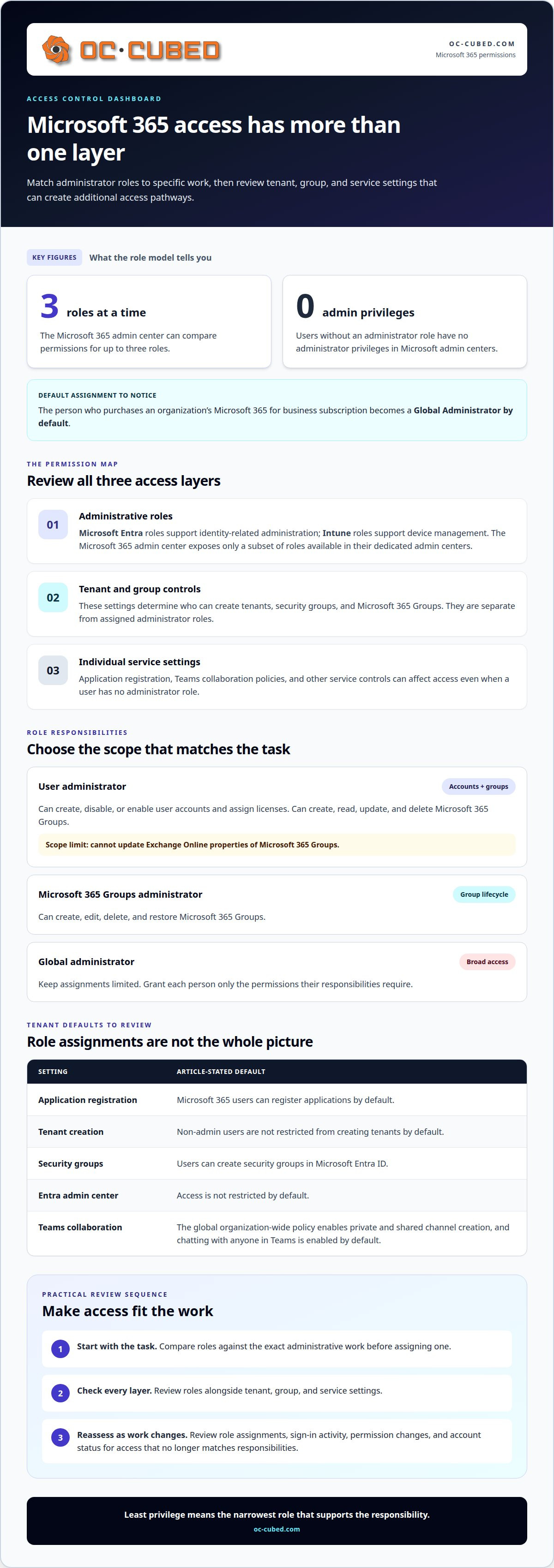
Administrator access should follow the work, not convenience. Managing user permissions in Microsoft 365 means assigning the narrowest role that supports each person’s responsibilities, then controlling access through tenant and group settings. The Microsoft 365 admin center manages a subset of Microsoft Entra and Intune roles, and administrators can compare up to three roles at a time. Users without an administrator role have no administrator privileges in Microsoft admin centers.
It’s easy to assume that access is controlled by one role or setting. In practice, permissions span administrative roles, security groups, and individual service controls, so a decision in one area may not cover the others. A clear approach helps reduce unnecessary access while preserving the permissions people need to do their jobs.
This reference explains how common Microsoft 365 roles differ, how tenant and security group controls affect access, and why least privilege matters. It also outlines what a professional considers when assigning or removing roles, so you can make informed decisions about protecting your organization’s environment.
Key Takeaways
- Match each Microsoft Entra or Intune role to the task it needs to support, and use the admin center’s role comparison to clarify differences.
- Review tenant and security group creation controls to understand who can establish new access pathways.
- Choose administrator roles by responsibility: user, helpdesk, Exchange, SharePoint, and Teams administrators have different scopes.
- Keep global administrator assignments limited and grant each person only the permissions their work requires.
- Use a structured process to assign or remove roles, then review access as responsibilities change.
Microsoft Entra and Intune roles in the Microsoft 365 admin center
Microsoft Entra roles control identity-related administrative tasks, while Intune roles govern device-management tasks. The Microsoft 365 admin center exposes only a subset of roles available in the separate Microsoft Entra and Intune admin centers. This distinction matters when an administrator cannot find a permission in one console. The role may need to be reviewed in its dedicated admin center instead.
A role is a defined set of permissions for administrative work. In the Microsoft 365 admin center, administrators can compare permissions for up to three roles at a time. That comparison helps distinguish similar assignments before granting access. For example, compare roles against the specific task, such as managing users or devices, rather than choosing a broad role for convenience.
A user role is the standard access level assigned to users without an administrator role. Those users have no administrator privileges in Microsoft admin centers. By contrast, the person who purchases an organization’s Microsoft 365 for business subscription becomes a Global Administrator by default. This makes the initial account’s access an important part of the tenant’s permission review.
Application registration is the ability to register applications in Microsoft Entra ID. Microsoft 365 users can register applications by default. This default is separate from administrator-role assignment, so reviewing admin roles alone does not cover every access pathway. A permissions audit should consider both assigned administrative roles and tenant-level settings that affect what users can create or access.
How do professionals audit user permissions and sign-in activity in Microsoft 365? They review assigned roles alongside user sign-in activity, then investigate access that does not match the person’s responsibilities. They also check changes to permissions and account status to identify unexpected access or explain why a user cannot perform a task.
If a user is missing, start with a focused account check. Confirm that the administrator account has the Global admin or User admin role. Then clear filters in Users > All users and search by the person’s name or email address. Check whether the account is cloud-only or synchronized from on-premises. Licensed-only, synchronized-only, and domain filters can hide accounts from the list.
Default settings also deserve review. Access to the Microsoft Entra admin center is not restricted by default, and users can register applications by default. These settings can affect the tenant even when everyday users lack administrative privileges. Reviewing both role assignments and these defaults gives a clearer picture of access across Microsoft 365.
- Compare roles against the exact administrative task before assigning them.
- Review default application-registration access separately from administrator roles.
- For missing users, check administrator rights, filters, search terms, and synchronization status.
Tenant creation and security group controls
Tenant and group settings define who can create Microsoft 365 environments and groups. Their default access controls can extend beyond administrator-role assignments.
Group Permissions by Admin Role
Group permissions are the actions an administrator role allows for Microsoft 365 Groups. A Microsoft 365 Groups administrator can create, edit, delete, and restore groups. A User administrator can also create, read, update, and delete Microsoft 365 Groups, but cannot update Exchange Online properties.
That distinction matters when a group task involves mail settings. For example, a User administrator can manage group records, but Exchange Online properties fall outside that role’s scope. Match permissions to the specific task instead of assuming that every role with group access can manage connected services.
Group Administrator Capabilities
A group administrator manages the lifecycle of Microsoft 365 Groups through creation, editing, deletion, and restoration. Those capabilities support routine changes, such as updating a group or restoring one that was deleted.
Tenant creation is a separate control. By default, non-admin users are not restricted from creating tenants, and users can create security groups in Microsoft Entra ID. Review group administration and tenant creation as distinct access questions, since each can allow users to create a different type of resource.
Teams controls add another layer. Under the global organization-wide policy, private and shared channel creation is enabled, and chatting with anyone in Teams is enabled by default. Include these settings when reviewing how users create collaboration spaces and communicate.
Microsoft 365 User Account Management
User account management covers creating, updating, enabling, and disabling accounts. Microsoft 365 User administrators can create, disable, or enable user accounts and assign licenses.
For account changes, professionals use the User administrator role when those actions match its scope. They can enable an account when access is needed or disable it when access should stop. License assignment is also part of this role. Group permissions are separate: the User administrator role can manage Microsoft 365 Groups, but cannot update their Exchange Online properties.
SharePoint and OneDrive Permissions
SharePoint and OneDrive permissions control access to sites and shared content. By default, users can create SharePoint sites, and SharePoint Online and OneDrive external sharing allows anyone links.
Professionals review these settings alongside who can create sites and how external links are allowed. For example, an anyone link can expose shared content beyond a named-user access list. Site creation and external sharing are separate controls, so reviewing one does not resolve the other. Microsoft 365 tenant maintenance can help keep these access settings aligned with organizational needs.
Administrator roles and their responsibilities
A Microsoft 365 administrator role is a permission set for managing specific services or tenant functions. Choosing by task helps avoid granting broader control than the work requires. A user-account task, for example, calls for a different scope from managing Exchange Online or Teams settings.
A Global Administrator has broad control over the Microsoft 365 tenant. This role can reset passwords for any user and other administrators, manage subscription and product purchases, and add or manage domains. The person who buys a Microsoft 365 for business subscription becomes a Global Administrator by default, so that initial assignment deserves attention.
A User Administrator manages user accounts and related group tasks. This role can create, disable, or enable accounts, assign licenses, and create, read, update, or delete Microsoft 365 Groups. It cannot update Exchange Online properties, which keeps its scope narrower than Exchange administration.
A Helpdesk Administrator can support account recovery and user access by resetting passwords and forcing users to sign out. A Password Administrator can reset passwords for users. The Helpdesk Administrator’s additional sign-out capability can help end sessions when needed.
An Exchange Administrator manages user mailboxes, Microsoft 365 Groups, and Exchange Online. A SharePoint Administrator can create and delete sites, manage site collections, and control global SharePoint settings. A Teams Administrator manages meetings, conference bridges, and organization-wide Teams settings. These service roles align administrative access with specific platforms.
A Reports Reader can view usage data and activity reports in the Microsoft 365 admin center. A Global Reader has read access to Microsoft 365 Groups, security groups, distribution groups, and mail-enabled security groups. A Security Reader has read-only visibility into agents and metadata in that center. These roles provide visibility without the change permissions associated with administration.
A License Administrator can reprocess group-based license assignments and assign product licenses to groups. A Service Health permission allows users to view Microsoft 365 service health. Some roles can also manage service requests, read Office 365 usage reports, update OAuth 2.0 permission grants, or manage billing. The Dynamics 365 Administrator manages all aspects of the Dynamics 365 product.
Which Microsoft 365 admin roles and security features require specific licenses? Role assignment and product licensing are separate decisions: a role defines administrative permissions, while product licenses govern access to licensed services. The required license depends on the service or security feature being used, so role names alone do not identify every licensing requirement.
Match each task to the permission it requires, then check the account’s user-management rights if an operation fails. This keeps account administration, service administration, and license assignment distinct. Microsoft recommends requiring multifactor authentication for administrators as an additional safeguard for privileged access.
Least-privilege role assignment
Least privilege means giving each account only the access its work requires. Microsoft recommends assigning the least permissive administrator role that meets a user’s needs and keeping the number of global administrators as low as possible. This makes role assignment a deliberate decision, not a convenience shortcut. For managing user permissions in Microsoft 365, professionals connect access to job duties and revisit it as those duties change.
Assigning and Removing Admin Roles
An administrator role assignment grants specific permissions for Microsoft 365 administration. Professionals identify the task first, select a role that covers it, and remove assignments that are no longer needed. Microsoft’s admin center instructions cover assigning roles to tens of users. For hundreds of user accounts, Microsoft recommends using PowerShell.
Before applying a change, consider the role’s scope and the account’s responsibilities. The Board of Governors of the Federal Reserve System advises limiting each user’s access to systems and resources related to their job function or role. This principle helps distinguish task-specific access from broad administrative access.
Removing access deserves the same care as assigning it. A role can be removed when a person’s duties change, while their user account remains available for other work. Record the reason for each change so later reviews can distinguish intentional access from outdated permissions.
User Licenses and Access
A license grants access to licensed Microsoft 365 products, while an administrator role grants management permissions. Professionals review these separately so product access does not automatically lead to administrative authority.
A Microsoft 365 User administrator can assign licenses to user accounts. A License Administrator can assign product licenses to groups for group-based licensing and reprocess group-based license assignments. For example, a user may need a product license for their work without needing a Global Administrator role. This separation helps keep access aligned with the task.
When managing user permissions in Microsoft 365, professionals consider group-based assignments as well as individual account access. They review who belongs to the relevant group and whether the group’s assigned products and permissions still fit its members’ work.
Revoking Access for Departing Users
Access revocation removes a departing user’s rights to organizational systems and resources. Use an authorized access list to identify which rights need to be removed. The Internal Revenue Service notes that such a list can help remove access rights when a user leaves the organization.
A Microsoft 365 User administrator can disable the account, while professionals separately review role assignments, licenses, and group-based access. This helps address more than the sign-in account alone. The exact changes depend on the user’s assigned permissions and organizational resources.
Keeping these actions distinct supports a clear departure process. Document the account change and the access reviewed, then use that record to assess whether remaining permissions still match current job responsibilities.
Assign or remove roles in Microsoft 365 admin center
An administrator role assignment gives a Microsoft 365 account permission to perform administrative tasks. Professionals use the Microsoft 365 admin center to grant or remove those permissions, matching each change to the person’s responsibilities. The center’s instructions cover assignments to tens of users, while larger assignment tasks may call for a different approach.
Before changing access, identify the users, their tasks, and the role those tasks require. Microsoft recommends assigning the least permissive administrator role that meets a user’s needs. Also check whether the account making the change has the required user-management rights. Without those rights, the account may not be able to make the role change.
A role change should follow a controlled sequence, not a broad permission update. A typical process is:
- Identify the named user account and the administrative work it supports.
- Select a role whose permissions cover that work, without adding unrelated authority.
- Apply the assignment in the Microsoft 365 admin center and review the resulting access.
- For removal, locate the existing assignment, remove it, and confirm it no longer appears.
Each step serves a distinct purpose. Selecting a user helps prevent changes to the wrong account. Matching the role to the task limits excess access, while reviewing the resulting assignment can catch a mistake before the change is complete. When removing access, distinguish the administrator role from the user account itself: removing a role does not delete the account.
For multiple users, the scope matters. Microsoft’s Microsoft 365 admin center instructions address assigning administrator roles to tens of users. Microsoft recommends using PowerShell to assign administrator roles to hundreds of user accounts. This distinction helps professionals choose an approach suited to the assignment size, rather than applying a small-scale process to a much larger task.
Role removal is part of routine access maintenance. When someone’s responsibilities change, review whether their current assignment still fits. If their work no longer requires administrative access, remove the role while keeping the user account available for other work. For a departing user, consider role removal alongside account deactivation and other access rights.
Keep a clear record of the affected accounts, the role change, and its purpose. That context helps explain why a permission was granted or removed during a later review. Microsoft 365 tenant maintenance can support consistent role reviews and access changes across the environment.
OC Cubed - Your trusted MSP: Microsoft 365 Tenant Maintenance
OC Cubed - Your trusted MSP supports businesses that need ongoing oversight of Microsoft 365 access and tenant settings. Microsoft 365 Tenant Maintenance helps keep role assignments, account permissions, and related configurations aligned as staff responsibilities change.
Turn to this support when role changes are difficult to track, access reviews are inconsistent, or tenant controls need regular attention. Security Threat Detection and Remediation and Endpoint Protection / Antivirus can complement tenant maintenance when access management is part of a broader security concern. Remote IT Support can also help resolve Microsoft 365 user access issues.
Identify the accounts that need attention, the responsibilities that have changed, and any access concerns your organization has found. This context helps focus permission maintenance without granting broader access than the work requires.
Contact OC Cubed - Your trusted MSP to discuss Microsoft 365 Tenant Maintenance.
Make access reviews part of how your team works
Permissions should reflect current responsibilities, not an old organization chart. As people change roles and business needs shift, make access review a regular part of account and security decisions. A deliberate approach to managing user permissions in Microsoft 365 helps keep access aligned with the work each person performs.
Establish clear ownership for reviewing changes, documenting decisions, and following up when access no longer fits. This gives your team a consistent process as the organization evolves, rather than treating each permission change as an isolated task.
For support with keeping your Microsoft 365 environment and access controls in order, connect with OC Cubed - Your trusted MSP.
Clear ownership and thoughtful reviews help your team manage access with confidence.
Frequently Asked Questions
How do Microsoft 365 roles and permissions work?
Roles bundle permissions for managing specific Microsoft 365 services or tasks, while permissions define the actions an account can perform. A person may need access to one service but not others, so professionals assess the work before selecting a role. For example, someone responsible for Teams settings may need Teams administration rather than broad tenant control. Separating service access from administrative authority helps clarify what each account can change.
How do professionals use Microsoft Entra ID groups and role-based access control in Microsoft 365?
Use Microsoft Entra ID groups to organize users who need similar access, then align assignments with their job duties. For example, a department group can simplify access management for staff with shared responsibilities as membership changes. Role-based access control links permissions to defined roles instead of assigning unrelated rights to each person. Review group membership regularly, since former members may retain access through the group.
What are least-privilege and conditional access best practices for Microsoft 365?
Least privilege means limiting each account to the access its work requires. Conditional access applies rules based on sign-in circumstances. Start by identifying sensitive resources, assigning narrowly scoped permissions, and reviewing access when duties change. Set conditional access policies to reflect your organization’s security needs, and avoid granting access solely because someone belongs to a broad group. Test policy changes against real work scenarios before relying on them.

Article by
Peter Irizarry
Peter Irizarry founded OC Cubed, LLC in 2023 to help small to mid-sized businesses stop worrying about downtime and cybersecurity threats. A frequent speaker on SMB digital transformation, Peter is passionate about translating complex IT roadmaps into plain-English business growth strategies. He resides in North Texas with his family.


