

A clean inbox can still hide a convincing phishing message. Basic email filtering helps, but it can’t address every risk when an attacker targets a person’s credentials, impersonates a trusted sender, or persuades an employee to approve access. Securing Microsoft 365 against phishing takes more than one setting.
It’s reasonable to wonder which controls deserve attention first, especially when email protection, account security, and incident response can feel like separate problems. The practical answer is to connect them. Strong identity and access controls can limit account exposure, while layered email protections and clear reporting steps help reduce the chance that a suspicious message becomes a larger incident.
This guide explains how phishing can get past basic filtering and how to prioritize protections across Microsoft 365. You’ll learn how to strengthen account safeguards, use email controls such as impersonation protection and Safe Links, and give employees a simple way to report suspicious messages. It also covers what to do when a user may have clicked or shared credentials, and how ongoing tenant oversight can keep controls aligned with your business and licensing.
Key Takeaways
- Use a layered approach to securing Microsoft 365 against phishing, and account for the security features available in your licensing plan.
- Compare Microsoft 365 controls, added email security, and staff training by what each contributes and what it cannot address on its own.
- Follow a repeatable rollout: assess account and domain exposure, review protections, prioritize changes, test, train, and monitor.
- Track reported messages, investigated incidents, policy exceptions, and unresolved actions to spot gaps and guide follow-up.
- Build recurring security reviews into Microsoft 365 tenant oversight so changes in users, workflows, and threats don’t leave controls out of date.
Why securing Microsoft 365 against phishing takes more than spam filtering
Phishing is a deceptive attempt to get someone to reveal information, grant access, or take an action that benefits an attacker. In a Microsoft 365 business, that could mean entering a password on a fake sign-in page or approving a payment request that appears to come from a manager. The methods vary, as outlined in What is Phishing?, but the goal is to exploit trust. A spam filter can reduce unwanted mail, yet it can’t address every message that looks legitimate or every action a recipient might take.
The terms describe related but distinct risks. A malicious link may lead to harmful content or a credential-harvesting page, a fake site designed to capture sign-in details. Business email compromise (BEC) is a fraud scheme involving business email, often to manipulate payments or obtain sensitive information. It may use an impersonated identity or a compromised, trusted account, and the message may arrive without looking like conventional spam.
How phishing reaches a Microsoft 365 inbox
Attackers can disguise a sender’s identity, take over an account, or send messages with malicious links and harmful attachments. They may imitate a colleague, supplier, invoice, or routine request. A familiar name or ongoing email conversation can make a fraudulent instruction seem ordinary, especially when it appears time-sensitive.
- Deceptive sender: A lookalike address or display name imitates a trusted person or company.
- Compromised account: A real account is misused to send convincing messages to contacts.
- Link or attachment: A click may lead to a fake sign-in page or expose a user to harmful content.
Email filtering helps prevent some threats from reaching users. Detection and response matter too: a suspicious message may be delivered, reported later, or acted on before anyone recognizes it. No single filter should be treated as a complete safeguard.
What a successful phishing attempt can put at risk
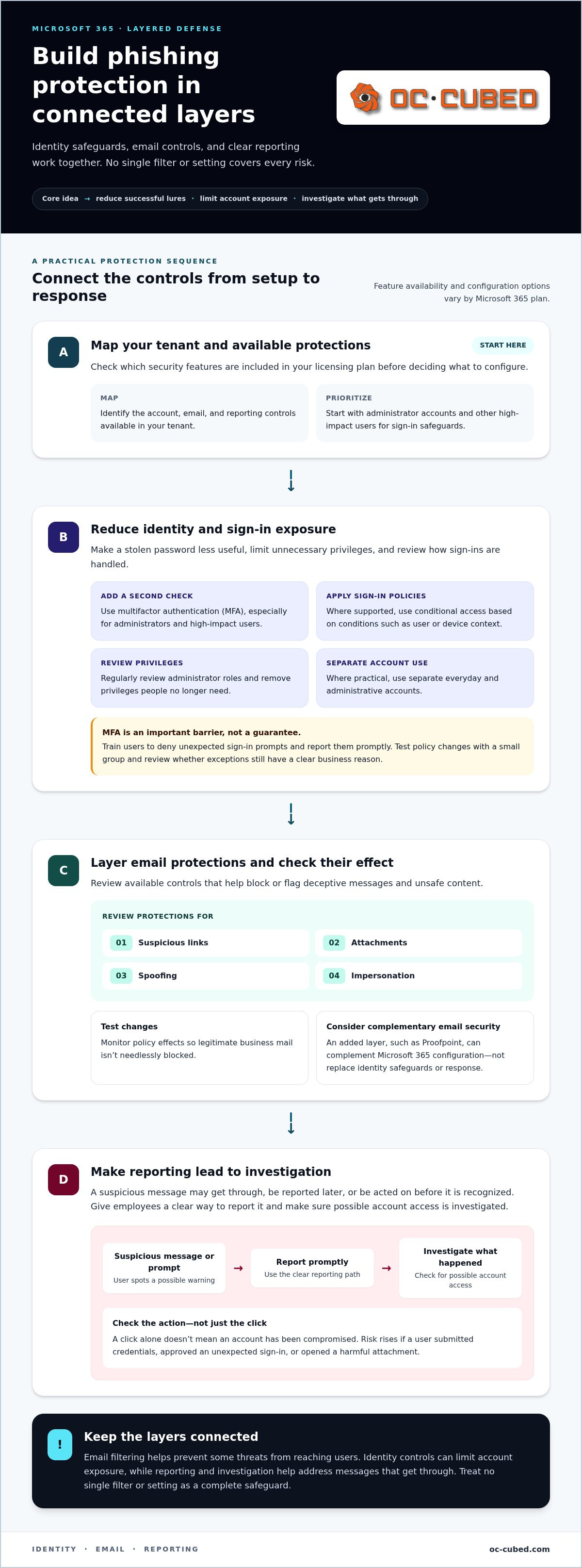
A click alone doesn’t mean an account has been compromised. Risk rises if a user submits credentials, approves an unexpected sign-in, or opens a harmful attachment. Stolen sign-in details may enable unauthorized access to a mailbox or other cloud resources, depending on the account’s protections. An attacker could then search for sensitive information, impersonate the account holder, or send fraudulent requests that appear to come from a trusted colleague.
The consequences can include exposed business data, attempted payment fraud, and time spent investigating activity or restoring access. Work may also be disrupted while accounts and messages are reviewed. The impact depends on what happened and which safeguards were in place. That’s why a clear path to report suspicious messages and investigate possible account access is as important as blocking threats in advance.
Layered phishing protection for Microsoft 365 combines email safeguards, identity protections, user reporting, and incident response so one missed warning doesn’t become the only line of defense. This is the practical foundation of securing Microsoft 365 against phishing: reduce the chance of a successful lure, limit the impact if one gets through, and make sure suspicious activity has an owner and a next step.
Build Microsoft 365 phishing defenses around identity, email, and reporting
Strong protection comes from controls that cover different points in an attack, not from a single filter or setting. Identity safeguards reduce the chance that stolen credentials grant access, email controls help block or flag deceptive messages and unsafe content, and staff reporting gives your team a way to investigate what gets through. Together, these layers help prevent some attacks, limit others, and support a faster response. Feature availability and configuration options vary by Microsoft 365 plan, so map the controls included in your tenant before building a rollout.
Protect Microsoft 365 identities and sign-ins
Start with multifactor authentication (MFA), especially for administrator accounts and other high-impact users. MFA adds a second verification step, making a password alone less useful to an attacker. Where your licensing and setup support it, conditional access can apply sign-in policies based on conditions such as user or device context. Review administrator roles regularly, remove privileges people no longer need, and use separate everyday and administrative accounts where practical.
MFA is an important barrier, not a guarantee. Attackers may still try to trick users into approving a sign-in or capturing an active session. Train users to deny unexpected prompts and report them promptly. Keep sign-in policies understandable, test changes with a small group, and review whether exceptions still have a clear business reason.
Strengthen email handling and employee reporting
Review the Microsoft email protections available to your organization, including controls for suspicious links, attachments, spoofing, and impersonation. Test policy changes and monitor their effect so legitimate business mail isn’t needlessly blocked. An additional email security layer, such as Proofpoint, can complement Microsoft 365 configuration, but it doesn’t replace identity safeguards or a response process.
Authenticate the domains your organization uses to send email. SPF identifies authorized sending sources, DKIM adds a signature that recipients can verify, and DMARC tells receiving systems how to handle messages that fail authentication checks and can provide reports. Configure these records carefully and review reports to identify legitimate senders that need attention. These measures make some forms of domain spoofing harder, but they don’t stop every impersonation attempt, particularly messages sent from compromised accounts or lookalike domains. Fortinet’s Email Security Best Practices also covers authentication and other useful safeguards.
- Make reporting easy: Give staff a clear way to flag suspicious messages and tell them not to reply, click links, or forward the message casually.
- Set an escalation route: If someone entered credentials, approved an unexpected prompt, or initiated a payment, they should report it immediately through a known internal channel, not by replying to the suspicious message.
- Assign ownership: Decide who reviews reports, investigates possible account activity, and coordinates remediation.
Consistent Microsoft 365 tenant maintenance helps keep these controls and ownership clear as the environment changes. Explore Microsoft 365 security support to see how OC Cubed can help maintain that oversight.
Compare Microsoft 365 controls, added email security, and staff training
Each layer addresses a different part of phishing risk. Microsoft 365 controls help protect accounts and manage email threats within the tenant. Added email security can provide another layer of detection or response. Staff training helps people recognize suspicious requests and report them. Compare the options by role, upkeep, and what remains uncovered when a layer is used alone.
Microsoft 365 controls
Primary role: Apply available identity, sign-in, and email protections in the tenant.
Operational effort: Review licensing, configuration, exceptions, and alerts as the environment changes.
Does not address alone: User decisions, every sophisticated message, or response gaps after a report.
Additional email security
Primary role: Add email-focused detection and protection alongside Microsoft 365 controls.
Operational effort: Coordinate configuration, alerts, and investigation ownership across tools.
Does not address alone: Weak sign-in protections, risky account privileges, or users who don’t know how to report concerns.
Staff training
Primary role: Help employees recognize suspicious messages and follow safe reporting steps.
Operational effort: Keep guidance relevant to real workflows and reinforce it over time.
Does not address alone: Technical weaknesses or threats that reach users despite careful behavior.
When Microsoft 365 protections may be the starting point
Built-in tenant controls may be a practical starting point when their available protections fit your needs and licensing. Don’t assume default settings are enough: review how policies are configured, which users or messages they cover, and whether alerts and reports are being checked. Microsoft plan names and feature entitlements can change, so verify current documentation before relying on a specific capability.
For example, review whether your configured email protections cover the links and attachments users receive, then check how account safeguards apply to privileged users. Identify exceptions and assign someone to monitor them. This keeps the focus on how controls work in your environment, not just whether a feature appears in an admin center.
When to consider additional email security and training
An additional email security layer may make sense when the organization needs more email-focused detection or response support. OC Cubed provides email security with Proofpoint to complement Microsoft 365, not replace sound tenant configuration. Staff training should use realistic examples, such as an unexpected invoice change, and explain exactly how to report it. The goal is better detection and prompt reporting, not blame when a convincing message fools someone.
For a broader view of how these measures fit into a security program, explore this managed cybersecurity guide. A clear owner for policies, reports, and follow-up helps connect the tools and training into a workable process. That coordination is central to securing Microsoft 365 against phishing without expecting any single layer to carry the full burden.
Roll out phishing protection in Microsoft 365 with a repeatable process
A phased rollout helps you improve protection without changing policies blindly or overwhelming employees. Start with the accounts and business processes most exposed to credential theft or payment fraud, then test changes before applying them more broadly. This makes securing Microsoft 365 against phishing a managed process with clear owners, not a one-time settings update.
- Assess exposure. Inventory administrator accounts, sign-in protections, email policies, sending domains, and existing reporting methods. Identify sensitive accounts and workflows where a fraudulent payment or stolen credentials could have a serious effect.
- Review controls. Check how identity safeguards and email protections are configured, which users they cover, and whether key settings have exceptions. Confirm that staff know where suspicious messages should go.
- Prioritize changes. Address gaps affecting administrator access, high-impact accounts, and payment or credential processes first. Broader cybersecurity risk planning can help align priorities with business impact.
- Test before rollout. Apply a proposed change to a small group or use a controlled test process. Check that expected protections work and legitimate messages and workflows still function.
- Train and explain. Show employees how to recognize suspicious requests and report messages using the approved route. Make the process straightforward, and explain what happens after a report.
- Monitor and adjust. Review reports, incidents, exceptions, and outstanding actions. Use what you learn to refine policies, training, and ownership.
Set a baseline and prioritize changes
Keep a simple record of who owns each control and its current state. Include administrator accounts and privileges, sign-in protections, email policies, domain settings, reporting routes, and known exceptions. Compare that baseline with business priorities: an account with broad access or a process that can redirect supplier payments may deserve attention before lower-impact issues. Record why each change matters and who will implement and review it.
Prepare staff and practice the response
Make reporting easy to follow. Employees should use the organization’s approved reporting method, not reply to suspicious messages or forward them through an unapproved channel. Assign an owner to review reports, an investigator to assess suspicious activity, and a person responsible for communicating next steps to affected staff.
Practice the process with a tabletop exercise. For example, ask the team to walk through what happens after an employee reports a message requesting a payment change. Note where ownership or instructions are unclear, then document improvements. Treat the exercise as a way to strengthen the process, not to blame someone for being deceived.
Rollout checklist: name an owner for each setting; document policy changes and exceptions; schedule practical training; publish the reporting route; define who investigates and communicates; set a recurring review cadence.
Keep Microsoft 365 phishing defenses effective with ongoing oversight
Phishing controls need regular review because people, processes, and attacker methods change. A new employee may receive different access, a supplier workflow may change, or a policy exception may remain long after its original purpose is gone. A control that was appropriate at setup can become incomplete or disruptive if nobody checks how it performs.
Use recurring reviews to turn security activity into useful follow-up. Look for patterns, not just totals: a cluster of reports about a particular sender may point to a campaign, while repeated exceptions may reveal a policy gap or a business process that needs attention.
- Reported messages: Check whether reports are reviewed and whether similar messages are reaching multiple users.
- Investigated incidents: Record what was examined, what action followed, and whether the event exposed a gap in controls or communication.
- Policy exceptions: Confirm each exception still has a valid owner and purpose. Remove or revise those that no longer fit.
- Unresolved actions: Track outstanding remediation, assigned responsibility, and what must happen before an item can be closed.
Decide who owns monitoring and follow-up
Define responsibility before a suspicious message arrives. Name who maintains Microsoft 365 settings, who reviews user reports, who investigates possible account activity, and who coordinates remediation. Internal staff should know how to raise an urgent concern and who will acknowledge it. If external IT support is involved, agree in advance how it receives relevant details, works with internal decision-makers, and communicates progress. Monitoring helps teams see and investigate activity, but it doesn’t prevent every phishing attempt or guarantee incident-free operations.
Bring in managed support when the workload needs structure
As the environment changes, tenant maintenance can keep configuration reviews and ownership part of regular operations. OC Cubed provides Microsoft 365 tenant maintenance and security threat detection and remediation. These services connect tenant-setting reviews with investigation and follow-up when suspicious activity requires attention. Managed oversight gives recurring reviews and open actions a defined place in the work.
Email security with Proofpoint adds another layer within a broader protection strategy. It complements, rather than replaces, Microsoft 365 configuration, identity safeguards, employee reporting, and incident ownership. A useful review process considers how these parts work together and who acts when one raises a concern.
Choose a review cadence your team can sustain. Set a recurring time to examine the signals above, revisit account and policy changes, and confirm that incident responsibilities remain clear. Explore OC Cubed’s business IT support for help bringing tenant upkeep and security follow-through into a managed process.
Make phishing resilience part of everyday operations
Turn your security plan into a routine your team can sustain. Choose an owner for each open action, set a date to revisit key decisions, and make sure employees know where to raise concerns. A steady review process helps your organization adapt as accounts, workflows, and business priorities change.
Securing Microsoft 365 against phishing is ongoing work, not a one-time configuration. OC Cubed supports that work through Microsoft 365 tenant maintenance, email security with Proofpoint, and security threat detection and remediation. These services bring configuration oversight, additional email protection, and follow-up into a coordinated approach.
With clear ownership and consistent attention, your business can build stronger security habits and keep moving forward with confidence.
Frequently Asked Questions
Can Microsoft 365 stop all phishing emails?
No. Microsoft 365 can help identify or block suspicious messages, but no email platform should be treated as catching every phishing attempt. Securing Microsoft 365 against phishing also means protecting accounts, authenticating sending domains, and giving employees a reliable way to report concerns. Review the protections included in your subscription and how they’re configured. Filtering is one safeguard, not a complete security strategy.
Does multifactor authentication prevent phishing?
No. Multifactor authentication can make a stolen password less useful, but it doesn’t eliminate phishing risk. An attacker may still target sign-in sessions or exploit weaknesses beyond the password itself. Prioritize administrator and other high-impact accounts, use the strongest sign-in controls your organization supports, and include MFA in a broader security plan. Check current Microsoft licensing and documentation before planning around specific features.
What should an employee do after clicking a phishing link?
Report it promptly through the organization’s approved IT channel, and explain what happened. Did the employee enter a password, approve a sign-in, or open a file? Those details help the response team decide what to investigate. Don’t reply to the sender or delete the message unless the response team instructs you to. If credentials were entered, follow the organization’s incident process right away, using a trusted route to reach IT.
How do SPF, DKIM, and DMARC help protect Microsoft 365 email?
They help receiving mail systems assess whether messages claiming to come from your domain are authorized. For a practical review, list every service that sends mail using your domain, including tools used for newsletters or customer communications. Confirm each is accounted for in your domain records, then monitor results before tightening DMARC handling. Careful changes help reduce certain spoofing risks without accidentally disrupting legitimate email.
Is Microsoft Defender for Office 365 included with every Microsoft 365 plan?
No. Microsoft security features and subscription entitlements vary and can change. Before relying on a specific email, link, attachment, or investigation feature, compare your current subscription with Microsoft’s current product documentation. Check the actual tenant and assigned licenses, not just a plan name remembered from a past purchase. If a capability isn’t available or doesn’t fit your needs, consider other suitable layers rather than assuming protection is in place.
What happens if a phishing email gets through Microsoft 365 filtering?
Treat it as a message to review, not proof that all protections have failed. Use your reporting route so the response team can examine the message, determine who else received it, and assess whether anyone interacted with it. Depending on what they find, they may remove related messages, secure affected accounts, or notify relevant staff. Keep a record of the investigation and follow-up so the team can address any control or process gaps.


